If you’ve ever scrolled through Discord, Twitter, or TikTok and smiled at those cute “pet-pet” GIFs—where a hand gently pats a character, pet, or meme—you’ve probably wondered how to make one yourself. The good news? With Petpet Generator, you can turn any image into a charming, shareable petting meme in just a few clicks—no design skills, expensive software, or prior experience required.
Whether you want to spruce up your Discord emotes, add personality to Twitter comments, or create viral-worthy TikTok reactions, this step-by-step guide will walk you through everything you need to know to make the perfect Petpet meme. We’ll cover image selection, customization tricks, and pro tips to make your GIFs stand out—plus, we’ll address common pitfalls so you can avoid mistakes on your first try.
What You Need Before You Start
The best part about Petpet Generator is how simple it is—you don’t need any special tools or downloads. All you need is:
- A device with a web browser (Chrome or Firefox works best to avoid green artifacts, per the tool’s FAQ).
- An image you want to turn into a meme (JPG, PNG, or GIF—we’ll share tips for choosing the best one below).
- 2-3 minutes of your time (seriously, it’s that fast!)
Pro tip: No registration, email sign-ups, or payment is required—Petpet Generator is 100% free, with no watermarks or limits on how many memes you can create. Your images never leave your device, either—all processing happens locally in your browser, so your privacy is protected.
Step 1: Choose the Perfect Image for Your Petpet Meme
The key to a great Petpet meme is picking an image that’s “petable”—think cute, expressive, or even funny subjects that will shine with the petting animation. Here’s how to choose the right one:
- Subject Matters: Pets (dogs, cats, bunnies), cartoon characters, meme faces (like the “Distracted Boyfriend” or “Confused Math Lady”), or even inanimate objects (think a plush toy or a slice of pizza—get creative!). The more expressive the subject, the more charming the petting effect will be.
- Image Size & Format: Square images work best for most social platforms (Discord emotes, Twitter reactions), but Petpet Generator automatically adjusts any size to fit the animation. Avoid blurry or low-resolution images—clear, high-quality photos will make your meme look polished.
- Copyright Check: Make sure you own the rights to the image you’re using (or it’s royalty-free). This avoids copyright issues when sharing your meme online.
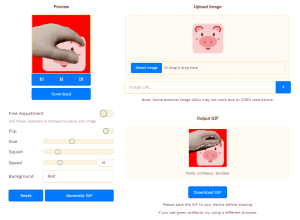
Once you have your image ready, head to Petpet Generator and click “Upload Image” (or drag-and-drop your file) to get started. You can also paste an image URL if your image is hosted online—perfect for quick meme edits!
Step 2: Customize Your Petpet Meme to Match Your Vibe
This is where the fun begins! Petpet Generator’s intuitive controls let you fine-tune every detail of your animation, so your meme feels unique. Here’s how to customize like a pro:
Adjust the Animation Speed
Use the speed slider to control how fast the “petting” hand moves. For a gentle, cozy vibe (great for cute pets or soft memes), go with a slow speed. For a funny, energetic effect (perfect for meme faces or silly subjects), crank up the speed—this makes the petting look playful and exaggerated.
Add the Squish Effect (Extra Cuteness Alert!)
One of Petpet Generator’s best features is the “squish” effect—this makes the subject of your image slightly squish when petted, adding an extra layer of charm. Toggle this on for pets, cartoon characters, or any subject that needs a little extra whimsy. Pro tip: Don’t overdo it—subtle squishing looks more natural than extreme squishing.
Tweak the Image Size & Orientation
If your image is too big or too small, use the size slider to adjust it. For Discord emotes, aim for a small, square size (Discord’s recommended emote size is 128×128 pixels, but Petpet Generator will optimize it for you). You can also flip the image (horizontal or vertical) if the subject is facing the wrong direction—this ensures the petting hand feels natural.
Choose a Background Color (or Transparent!)
Match your meme to your social media feed or chat theme by selecting a background color. For Discord or Twitter, a transparent background works best—it lets your meme blend seamlessly with any chat or post. If you want a pop of color, pick a shade that complements your image (e.g., pastels for cute pets, bright colors for funny memes).
Preview as You Go
Don’t forget to check the preview window! Every adjustment you make will update the preview instantly, so you can see exactly how your meme will look before downloading. If something doesn’t feel right, tweak the settings until it’s perfect—there’s no rush!
Step 3: Download & Share Your Petpet Meme
Once you’re happy with your creation, it’s time to share it with the world! Here’s how:
- Click the “Generate GIF” button—this will create your final Petpet meme in seconds.
- Click “Download” to save the GIF to your device. No watermarks, no hidden fees—just your perfect meme, ready to share.
- Post it! Share your Petpet meme on Discord (as an emote or chat reaction), Twitter (in comments or as a post), TikTok (in videos or comments), or even send it to friends via text. It’s a fun, wholesome way to add personality to any conversation.
Pro Tips to Make Your Petpet Memes Go Viral
Want your Petpet meme to stand out from the crowd? Try these expert tips:
Pair with Trends: Use popular meme faces or current internet trends (e.g., viral audio, trending topics) to make your Petpet meme more relatable. For example, turn a trending “crying cat” meme into a Petpet GIF—people will love the added charm.
- Keep It Simple: Don’t overcomplicate the customization. A simple, well-executed petting animation is more effective than one with too many effects. Focus on making the subject the star.
- Test for Compatibility: If you see green artifacts in your GIF (a rare issue), try switching to Chrome or Firefox, or clear your browser cache—this usually fixes the problem quickly.
- Encourage UGC: If you’re a content creator or Discord moderator, ask your audience to share their own Petpet memes using your tool. This builds community and gives you more content to share!
Common Questions (FAQs) About Making Petpet Memes
Can I use any image to make a Petpet meme?
Absolutely! Petpet Generator works with any image—pets, faces, memes, cartoon characters, or even inanimate objects. Just make sure you own the rights to the image to avoid copyright issues.
Is there a limit to how many memes I can make?
No limits at all! Petpet Generator is 100% free, with no restrictions on the number of GIFs you can create. Create as many as you want, whenever you want.
Can I use Petpet memes for commercial purposes?
As long as you own the rights to the original image, you can use your Petpet meme for commercial purposes (e.g., social media marketing, brand emotes). Just double-check the copyright of your base image first.
Final Thoughts
Making Petpet memes with Petpet Generator is fun, fast, and totally accessible—even if you’ve never made a GIF before. By following these steps, you’ll be creating cute, shareable memes in minutes, perfect for spicing up your social media, chat messages, or content. Remember: the best Petpet memes are the ones that feel personal and fun—don’t be afraid to experiment with different images and settings!
Ready to get started? Head to Petpet Generator now and turn your favorite images into viral-worthy petting memes. And if you make something amazing, be sure to share it with us—we’d love to see your creations!

Comments (0)